Why Isn't My Website Showing Up on Google? (9 Reasons + Fixes)
Nine reasons a small-business site does not appear in Google, each with the exact check that identifies it and the actual repair. Including what Search Console and Lighthouse each tell you, and why they disagree.

Nine things stop a small-business site appearing in Google. You can diagnose all nine yourself, and diagnosing them is the short half: the repair is what takes the time. Work down them in order, because a page Google cannot read is not worth writing for.
1. Google has not crawled you yet
A new site is not indexed the moment it is published. Google has to discover it, crawl it, and decide it is worth storing. Google's own Search Central documentation declines to promise a timeframe, which tells you something: it varies from days to weeks, and nobody outside Google can shorten it reliably.
How to check. Open Google Search Console and use the URL Inspection tool on your homepage. It reports one of three states: the URL is on Google, the URL is not on Google, or it is a duplicate. If it says not on Google and gives no reason, you are simply early.
How to fix. Submit your sitemap in the Sitemaps report, then use URL Inspection to request indexing on your five most important pages. Requesting indexing is a queue, not a command: Google states plainly that it does not guarantee inclusion. Then you wait. Two weeks is normal, and there is nothing you can buy to shorten it.
The full repair →2. You are telling Google to stay out
This is the one that catches people who launched properly. A staging site gets a noindex tag so it does not compete with production, then the tag ships to production with everything else. The site is perfect and invisible.
How to check. Two places, and you must check both. First, view source on a page and search for noindex. Second, open yoursite.com/robots.txt in a browser and read it: a Disallow: / line under User-agent: * blocks the whole site. Search Console's Page indexing report names this exactly, as "Excluded by noindex tag" or "Blocked by robots.txt".
There is a third hiding place most guides miss: the X-Robots-Tag HTTP header. It does the same job as the meta tag but leaves no trace in the HTML. You can see it with curl -I yoursite.com or in your browser's network tab.
How to fix. Remove the tag or the rule, then use URL Inspection to request a recrawl. Recovery is usually days, not weeks, because Google already knows the URL. Finding the tag is the slow part. In the HTML it takes a minute. In a response header it can take an afternoon.
The full repair →3. Google cannot find your other pages
Your homepage is indexed and nothing else is. That is a discovery problem, not a ranking problem. Google finds pages by following links, and a page nothing links to is a page that does not exist as far as a crawler is concerned.
How to check. In Search Console, the Page indexing report splits your pages into indexed and not indexed, with a reason for each exclusion. "Discovered - currently not indexed" means Google knows about the page and has chosen not to crawl it yet. "Crawled - currently not indexed" is worse: it looked, and decided against.
How to fix. Publish an XML sitemap listing every page you want found, and submit it. Then fix the internal linking, which is the part people skip: every page should be reachable from your homepage in three clicks or fewer. Orphan pages that appear only in a sitemap get crawled late and treated as unimportant. The sitemap is an hour's work. The linking is not a task you finish, it is a habit you keep.
The full repair →4. The page is too slow
Speed is a confirmed ranking signal and, more importantly, a confirmed abandonment signal. Google measures it through Core Web Vitals, and there are three numbers that matter.
Largest Contentful Paint (LCP) is how long until the biggest thing on screen appears. Google's guidance is 2.5 seconds or less.
Interaction to Next Paint (INP) is how long the page takes to respond when someone taps. Good is 200 milliseconds or less. Poor is over 500. This metric replaced First Input Delay (FID), so any guide still telling you to optimise FID is working from a retired standard.
Cumulative Layout Shift (CLS) measures how much the page jumps around while loading. Good is 0.1 or less. Poor is above 0.25.
How to see what Google sees
Search Console's Core Web Vitals report is the one that counts, because it is field data: real measurements from real Chrome users on real connections, drawn from the Chrome User Experience Report (CrUX). Google measures it at the 75th percentile of page loads, segmented across mobile and desktop, which has two consequences worth understanding. Your slowest quarter of visitors decides your grade. And because the figure is aggregated over a trailing window of weeks rather than days, a fix does not appear immediately: you cannot deploy at noon and check at one.
The report needs enough traffic to produce data. A quiet site will show nothing at all, which is not a pass.
How to measure it yourself
Lighthouse is Google's own auditing tool and it runs in three places. In Chrome, press F12, open the Lighthouse panel, choose Mobile, and run it. On the web, PageSpeed Insights runs the same engine and shows field data beside it. From a terminal, npm install -g lighthouse then lighthouse https://yoursite.com --view.
One distinction that matters more than any single score: Lighthouse is lab data, one simulated load on a throttled connection, and Search Console is field data from real people. Lab data is repeatable and immediate, which makes it good for testing a change. Field data is what Google actually ranks on. They disagree regularly, and when they do, the field data wins.
The real fix
Most speed advice stops at compressing images. Do that, and it is worth doing: convert to WebP or AVIF, set explicit width and height attributes so nothing shifts while loading, and lazy-load anything below the fold. Lighthouse's Opportunities section will list the specific files costing you the most, in kilobytes and milliseconds.
Then you reach the part that actually decides the number. If your pages are built by a server on every request, by WordPress querying MySQL and assembling a template, your Time To First Byte includes all of that work, every time, for every visitor. The fastest possible dynamic page is slower than an average static one, because a static page is a file that already exists.
Pre-rendering means generating each page to plain HTML at build time instead of at request time. The result is a folder of files with no database behind them. Every modern site framework does this: Astro, Next.js, Hugo, Eleventy, Jekyll. Moving an existing dynamic site to pre-rendered output is not a setting. It is a rebuild, measured in weeks.
Putting it on a content delivery network
Static files can be copied to servers around the world so they are served from near the visitor rather than from wherever your server lives. That is a content delivery network (CDN), and for a small site it is genuinely inexpensive: Cloudflare's free tier covers it, and Bunny, Fastly and Amazon CloudFront are all viable at a few dollars a month.
Setting one up, in order. Create the account and add your domain. Change your nameservers, or add a canonical name (CNAME) record, which is a DNS alias pointing one name at another, so traffic routes through the CDN: expect DNS propagation to take up to 48 hours. Issue a TLS certificate, which most providers now do automatically. Then set cache headers, and this is where it goes wrong for most people.
The rule is that HTML must stay fresh and assets can be cached forever, and the way you get both is content-hashed filenames. Your CSS ships as styles.a3f9c1.css, and when the content changes the hash changes, so the URL changes, so the cache is bypassed automatically. Only then is it safe to serve assets with a long max-age and immutable. Get that backwards, and cache an asset for a year at a filename that never changes, and your visitors will keep seeing last month's design with no way to force them out of it.
Finally, purge the cache on every deploy, and verify: curl -I your page and read the cache-control and age headers back. Do not assume the configuration took. Setup runs to a day. Finding the cache rule you got wrong takes rather longer.
5. It breaks on a phone
Google indexes the mobile version of your site, not the desktop one. This has been the default since 2019 and completed for all sites in 2023. If your site is usable on a laptop and broken on a phone, Google sees the broken one.
How to check. In Chrome, press F12 and use device emulation at 375 pixels wide, which is roughly an iPhone SE and a fair worst case. Look for horizontal scrolling, text under 16 pixels, and tap targets smaller than about 48 pixels square. Then check it on a real phone, because emulation does not reproduce touch behaviour or actual network speed.
How to fix. Responsive layout with fluid widths rather than fixed pixel values, and a viewport meta tag. If your site was built desktop-first, retrofitting this is usually a rewrite of the CSS rather than an adjustment to it. An hour if the layout was nearly right, a fortnight if it was not.
The full repair →6. The page does not answer the question
A page can be indexed, fast, and mobile-perfect, and still rank nowhere, because it does not answer what was asked. Google's guidance on helpful content is explicit that it rewards material written for people rather than for search engines, and the ranking systems are built to detect the difference.
How to check. Search Console's Performance report lists the queries you already appear for, with impressions, clicks and average position. High impressions with almost no clicks means you are being shown and not chosen: usually a title and description problem. Position 15 to 30 means you are close and thin.
How to fix. Take one query, read the pages currently ranking for it, and ask what they answer that you do not. Then answer it, specifically, with real numbers and real steps. Word count is not the target and never was: a 400-word page that settles the question outranks 2,000 words that circle it. Several hours a page, done properly, and it is the work most people skip.
The full repair →7. Nobody links to you
Links from other sites remain one of the strongest signals Google has, for one reason: they are hard to fake and they are somebody else's vote. A site with no inbound links looks unvouched-for.
How to check. Search Console's Links report shows your top linking sites. If it is empty or lists only your own domains, that is your answer.
How to fix. Start with the listings you are entitled to and have not claimed: your industry association, your local chamber of commerce, suppliers who publish a stockist page, the trade body whose logo is already on your van. Then earn the rest by publishing something worth citing. Buying links violates Google's spam policies and risks a manual action, which is a worse position than the one you started in. This runs in months rather than days, and it cannot be hurried without taking on risk.
The full repair →8. You are invisible locally
If you serve a place rather than the internet, the map pack matters more than the blue links, and it is fed by a different system. A Google Business Profile is what puts you on the map, and it is separate from your website entirely.
How to check. Search your business name plus your town, in an incognito window so your own history does not flatter the result. If no map panel appears with your details, you are not in it.
How to fix. Claim the profile and complete it: exact category, service area, hours, photos. Then make sure your name, address and phone number appear identically everywhere they appear at all. Inconsistent details across directories are a known cause of weak local ranking, and reconciling them is genuinely dull work across sites you may have forgotten you were listed on. An afternoon to claim it, then forever to keep it straight.
The full repair →9. Google picked a different version of your page
Your page is indexed. Just not the URL you expected. The same content reachable at http and https, with and without www, with and without a trailing slash, and with tracking parameters attached, is four or more URLs showing one page. Google picks one as canonical and the others become duplicates.
How to check. URL Inspection reports the "Google-selected canonical" alongside the one you declared. When those two disagree, Google has overruled you, and the Page indexing report will list the page under "Duplicate, Google chose different canonical than user".
How to fix. Pick one form and be consistent. Redirect the others with permanent 301 redirects, declare a self-referencing canonical tag on every page, and make your internal links use the canonical form. Then confirm the redirects actually return 301 and not 302, because temporary redirects do not pass authority the same way and the difference is invisible in a browser. A day, most of it spent finding every place the old URL was hardcoded.
The full repair →Where to start
There is no point improving content on a page Google is blocked from reading, and no point chasing links to a page that is not indexed.
Most sites have two or three of these, not nine. They present identically from the outside: the site is not in Google, and nothing tells you which one is responsible. Working through all nine by hand takes most of a day before you have repaired anything.
If you would rather start with the answer than the search, our audit runs the technical half of this list against your URL and reports which items apply to you. It is free, and it needs no account.
Check which of the nine apply to your site →It will not fix them for you. Nothing does that in one click, whatever else you have been told.
References
Google, Web Vitals: the metrics and why they were chosenGoogle, Largest Contentful Paint (LCP): definition and targetGoogle, Interaction to Next Paint (INP): thresholds for good, needs improvement and poorGoogle, Cumulative Layout Shift (CLS): good is 0.1 or less, poor is above 0.25Google, Chrome User Experience Report (CrUX): how field data is collectedGoogle, Lighthouse: what it measures and how to run itGoogle Search Central, Block search indexing with noindexGoogle Search Central, Sitemaps overviewGoogle Search Central, Consolidate duplicate URLs with canonical tagsGoogle Search Central, Mobile-first indexingGoogle Search Central, Creating helpful, reliable, people-first contentGoogle Search Central, Spam policies, including link schemesGoogle Search Console Help, URL Inspection toolGoogle Business Profile Help, Add or claim your businessBy Jesper Jurcenoks
Next in the series
How to fix a website that breaks on a phone
Your desktop rankings are computed from the phone rendering. Google indexes with Googlebot Smartphone, so what a phone cannot reach is not indexable.
2026-08-18
Google picked a different version of your page: fixing duplicate URLs and canonicals
Your page is indexed. Google just indexed a different URL of it than the one you promote and track. Pick one form, redirect the rest, make the signals agree.
2026-08-18
How to find and remove a noindex tag or robots.txt block that keeps your site out of Google
Your site is not missing from Google. It is being refused, on your own instruction. Three mechanisms can issue it, and two leave nothing in your HTML.
2026-08-18
Only your homepage is indexed: how to get Google to find the rest of your site
Google indexes what it can reach. If only your homepage is indexed, your pages are not being outranked: they are not being found. Internal links come first.
2026-08-18
How to get backlinks for a small business
Of the nine reasons your site is missing from Google, links are the one you control least. Fix the other eight first, then claim the links you are owed.
2026-08-18
How to get Google to index a new website
If your site went live in the last few weeks, the likely explanation is the boring one: Google has not got to you yet. What shortens the wait, and what does not.
2026-08-18
How to make your website faster and pass Core Web Vitals
Compressing your images will not fix this. Three numbers decide whether Google calls your site fast, and two are set by your architecture, not your assets.
2026-08-18
How to show up in local Google search when you serve a town
Your website is not your entry on the map. The map pack is fed by a Google Business Profile, a separate record you must claim and verify to compete on it.
2026-08-18
My page is indexed but gets no traffic: how to make it answer the question
Your page is not missing from Google. It is present and unwanted. Search Console tells you which problem you have: not being shown, or shown and not chosen.
2026-08-18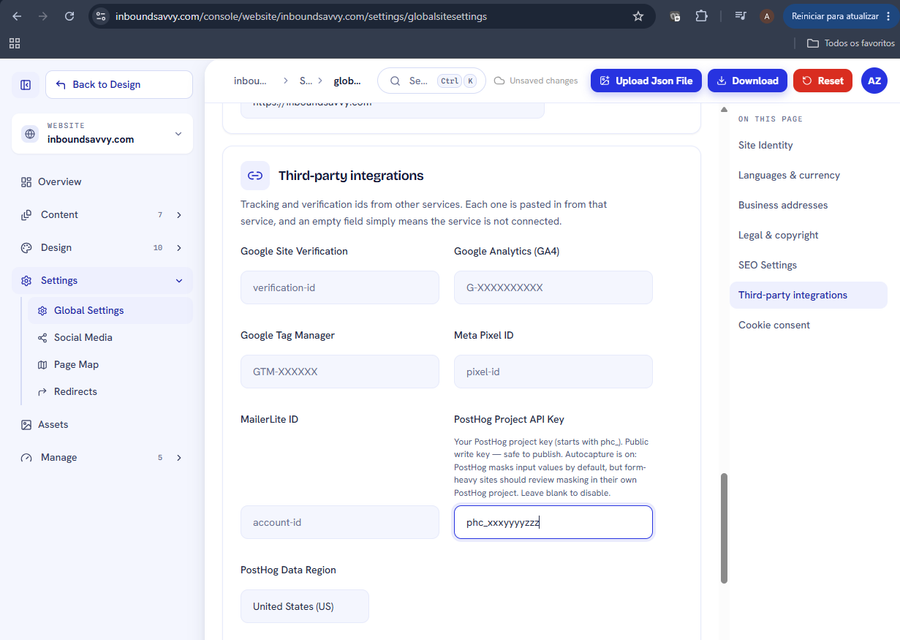
Set Up PostHog Analytics for Your Website
PostHog shows what visitors actually do on your site. InboundSavvy has it built in: one token, one dropdown. Includes how to connect PostHog's MCP server so your AI assistant can query the data.
2026-08-05
How to Get Your Small Business Found on Google in 2026
Getting found on Google changed with AI Overviews and AI Mode. Here's what actually moves the needle for a small business in 2026 - in plain English, no jargon.
2026-07-01Why Isn't My Website Showing Up on Google? (9 Reasons + Fixes)
Nine reasons a small-business site does not appear in Google, each with the exact check that identifies it and the actual repair. Including what Search Console and Lighthouse each tell you, and why they disagree.
2026-06-28
The Small-Business Website SEO Checklist for 2026
SEO for a small business comes down to a handful of things done well. Here's a practical 2026 checklist, grouped by what each item actually does for you.
2026-06-25
Let Claude Edit Your Website: Connecting InboundSavvy to Claude Code
A non-technical guide to setting up InboundSavvy's MCP integration with Claude Code - one prompt, a few clicks, and AI starts building your website.
2026-05-25Other articles
How to fix a website that breaks on a phone
Your desktop rankings are computed from the phone rendering. Google indexes with Googlebot Smartphone, so what a phone cannot reach is not indexable.
2026-08-18Google picked a different version of your page: fixing duplicate URLs and canonicals
Your page is indexed. Google just indexed a different URL of it than the one you promote and track. Pick one form, redirect the rest, make the signals agree.
2026-08-18How to find and remove a noindex tag or robots.txt block that keeps your site out of Google
Your site is not missing from Google. It is being refused, on your own instruction. Three mechanisms can issue it, and two leave nothing in your HTML.
2026-08-18Only your homepage is indexed: how to get Google to find the rest of your site
Google indexes what it can reach. If only your homepage is indexed, your pages are not being outranked: they are not being found. Internal links come first.
2026-08-18How to get backlinks for a small business
Of the nine reasons your site is missing from Google, links are the one you control least. Fix the other eight first, then claim the links you are owed.
2026-08-18How to get Google to index a new website
If your site went live in the last few weeks, the likely explanation is the boring one: Google has not got to you yet. What shortens the wait, and what does not.
2026-08-18How to make your website faster and pass Core Web Vitals
Compressing your images will not fix this. Three numbers decide whether Google calls your site fast, and two are set by your architecture, not your assets.
2026-08-18How to show up in local Google search when you serve a town
Your website is not your entry on the map. The map pack is fed by a Google Business Profile, a separate record you must claim and verify to compete on it.
2026-08-18My page is indexed but gets no traffic: how to make it answer the question
Your page is not missing from Google. It is present and unwanted. Search Console tells you which problem you have: not being shown, or shown and not chosen.
2026-08-18Set Up PostHog Analytics for Your Website
PostHog shows what visitors actually do on your site. InboundSavvy has it built in: one token, one dropdown. Includes how to connect PostHog's MCP server so your AI assistant can query the data.
2026-08-05How to Get Your Small Business Found on Google in 2026
Getting found on Google changed with AI Overviews and AI Mode. Here's what actually moves the needle for a small business in 2026 - in plain English, no jargon.
2026-07-01Why Isn't My Website Showing Up on Google? (9 Reasons + Fixes)
Nine reasons a small-business site does not appear in Google, each with the exact check that identifies it and the actual repair. Including what Search Console and Lighthouse each tell you, and why they disagree.
2026-06-28The Small-Business Website SEO Checklist for 2026
SEO for a small business comes down to a handful of things done well. Here's a practical 2026 checklist, grouped by what each item actually does for you.
2026-06-25Let Claude Edit Your Website: Connecting InboundSavvy to Claude Code
A non-technical guide to setting up InboundSavvy's MCP integration with Claude Code - one prompt, a few clicks, and AI starts building your website.
2026-05-25