Start here
What every screen in the Console is for
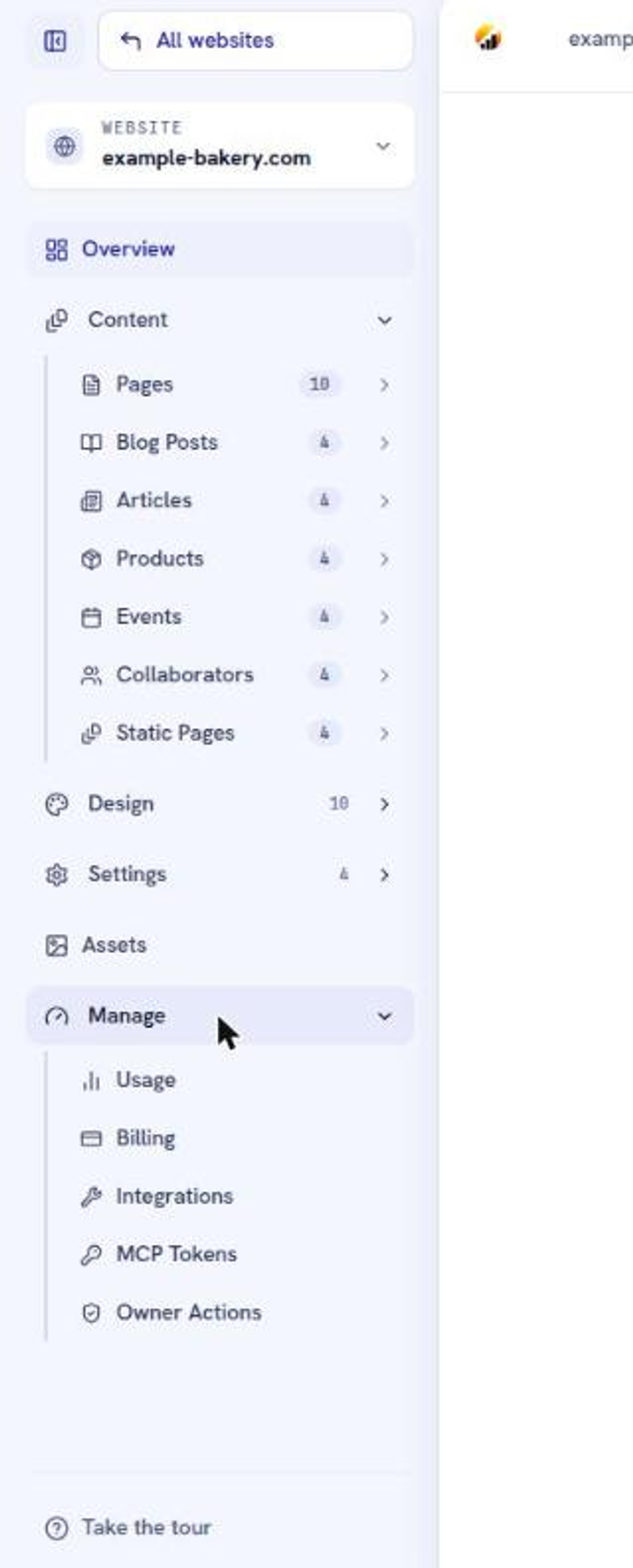
The sidebar is grouped by how far a change reaches: Content changes one page, Design changes every page, Settings changes how the site is addressed and found, and Manage changes the site itself.
The Console is a content management system (CMS) with one website selected at a time. The dropdown at the top of the sidebar switches websites. Everything below it applies to the selected site and nothing else.
Overview
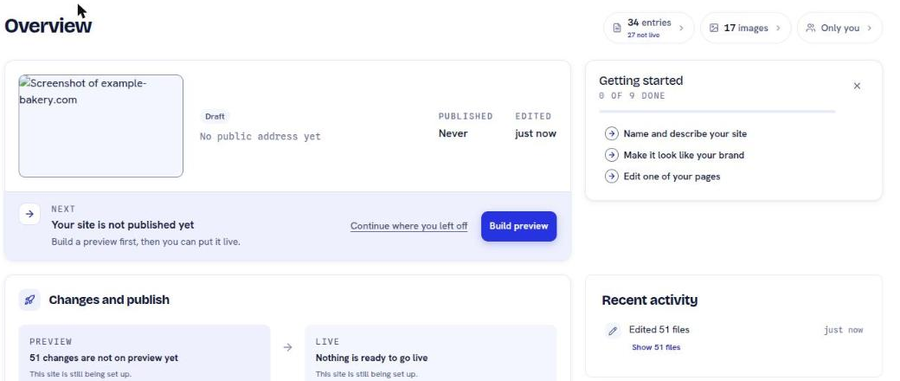
The landing screen for a site. It tells you the one thing worth knowing right now, in plain language: that the site is not published yet, that changes are waiting for a preview build, that the last publish failed, or that everything is published and nothing is waiting.
Each of those states comes with the action that resolves it. Treat the Overview as a to-do list that writes itself.
Content
Seven collections, each a list of entries you create and edit.
Collection
Holds
Pages
Home, About, Contact, and every other screen people land on
Blog Posts
Timely posts, newest first
Articles
Evergreen guides and tutorials
Products
Your catalogue, with images
Events
Dated listings, upcoming and past
Collaborators
Profiles for your team
Static Pages
Privacy, cookies, 404
The split between Blog Posts and Articles is editorial, not technical. A post that is true this month belongs in Blog. A guide that is still true next year belongs in Articles.
Design
Two kinds of screen sit here, and confusing them costs time.
Global Design Settings holds the design system: brand colors, fonts, and logo. Every page reads from it. Change a color here and the whole site changes.
Custom CSS is a Cascading Style Sheets (CSS) file applied on top of everything else. The Console's own description is the warning worth repeating: a mistake here shows on every page.
Navigation, Headers, Footer and the per-collection templates (Article template, Blog post template, Collaborator template, Event template, Product template) are shared layouts. One footer renders on every page of the site. One article template renders every article. Edit one of these and you have edited hundreds of pages at once.
Settings
Global Settings: site name, domain, and language. These reach the browser tab, search results, and structured data.
Social Media: your profiles, rendered as icons across the site and embedded in the site metadata.
Page Map: the navigation structure and the list of addresses the site builds. Drag to reorder. A page absent from here has no address.
Redirects: rules that send an old address to a new one, so links people already have keep working.
Assets
Every image on the site, filed by the collection that uses it: images, blog, articles, events, products, collaborators, and public. Upload, search, and replace happen here. See images for which folder an image belongs in and why it matters.
Manage
Usage: charts of what the site has consumed, publishes and editor requests over time.
Billing: the plan and the invoices for this site.
Integrations: the keys that connect this site to Zoom, TicketTailor, MailerSend and the rest. Switched on per site, so this page may tell you to ask us first.
MCP Tokens: Model Context Protocol (MCP) keys that let an AI assistant read and edit this site. Owner only. Covered in MCP tokens.
Owner Actions: the four things only the owner can do.
Build logs are not in the sidebar. They have their own page, and the way you reach it is the View build logs link the Overview shows when a publish fails, which is the only time you need them.
The four owner actions
Only two of them are reversible.
Action
Reversible
Manage Access: give or remove someone's ability to edit this site
Yes
Export Data: download all content and images as one ZIP file
Yes, and it changes nothing
Transfer Ownership: hand the site to one of its managers
No, not without their help
Delete Website: remove the site and everything on it
No
Everyone you grant access to can edit content and settings. There is no read-only role.
The one keyboard habit worth forming
The Console has a command palette that searches every screen, every collection, and every owner action by name, and remembers what you opened recently. Reaching a screen by typing its name is faster than remembering which group it lives under.
Next
Still stuck?
Send us the site name and what you were trying to do. A person answers, usually within one business day.