Going live
Build preview, then publish live
Saving an edit does not change your live site. Nothing reaches a visitor until a build runs, and the product makes you preview before you publish.
Every edit you save becomes a change with a status. A change is pending until a build picks it up, then built. The site Overview counts them for you.
The two buttons, and why only one is ever offered
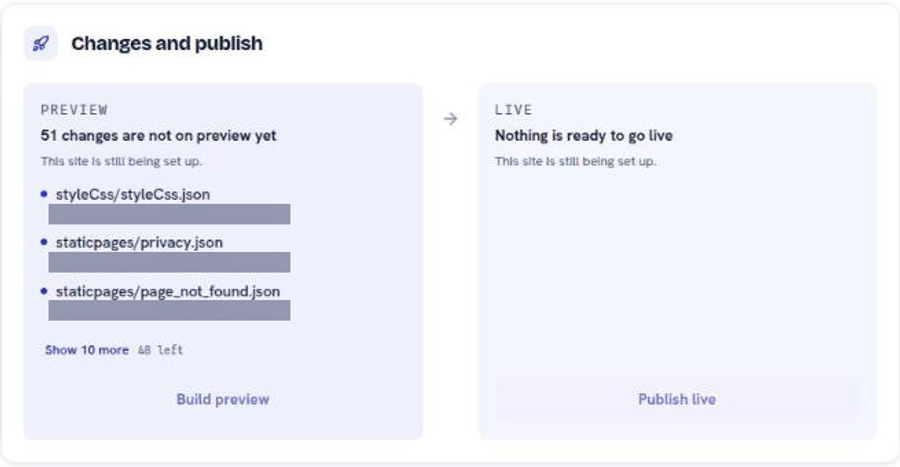
The Console shows a single build action at a time, chosen from the state of your changes.
What you see
What it means
Build preview
At least one change is pending. This builds them onto your private preview address.
Publish live
Every change is built. This puts the current state on your real domain.
You cannot reach Publish live while a change is still pending. That is deliberate: the rehearsal is not optional.
Publish, step by step
1
Save your edits. Each one becomes a pending change.
2
Go to the site Overview. It reports how many changes are not on your preview site yet.
3
Click Build preview and wait for the build to finish.
4
Open the preview address and check the pages you touched, on a narrow screen as well as a wide one.
5
Return to the Overview and click Publish live.
What the Overview is telling you
The Overview writes a short status in plain language. Each one has a specific meaning.
•
Your site is not published yet. Nobody can reach it. Publishing is what gives it an address.
•
Changes are not on your preview site. You have saved edits that no build has picked up.
•
Everything is published. Nothing is waiting.
•
Your last publish failed, or was stopped. Nothing new went out. Your live site is still the previous version.
•
Nothing published in a while. A nudge, not an error. Search engines favour sites that keep changing.
When a build fails
A failed build is safe: nothing new goes out, and the version already live stays live. The failure is a refusal to ship something broken.
1
Click View build logs from the Overview banner, or open More, then Build Logs.
2
Read from the bottom of the log upward. The error is near the end.
3
Fix the cause, save, and build the preview again.
Three causes account for most failures: an image referenced by a filename that was never uploaded, a page registered in the Page Map pointing at a file that does not exist, and a content entry missing a field its collection requires.
A stopped build is different from a failed one: it was interrupted rather than rejected. Build it again.
What a build does not do
A build renders your content into static files and puts them on a content delivery network (CDN). It does not run an application server, which is why there is nothing to fall over between builds, and also why a change is invisible until the next build runs.
Next
Work out what broke, in order
The failures people actually hit, each with its check and its repair.
Choose the address your site lives at
What the domain field accepts, and what happens if you already own it.
What every screen in the Console is for
A map of the sidebar, and how far each screen's changes reach.
Still stuck?
Send us the site name and what you were trying to do. A person answers, usually within one business day.